





Integrated business planning platform
The Jedox Platform unifies data, logic, and users into a single planning and analytics environment—so you can plan, analyze, and adapt faster. Designed for Finance and built to scale across the enterprise, Jedox enables intuitive planning on web, Excel, and mobile. Smart logic, connected data, and seamless collaboration keep every workflow real-time and aligned. All powered by JedoxAI to help you automate Workflows, respond sooner, and collaborate securely across departments.
Platform architecture: A unified foundation
Jedox brings all your planning processes together—scalable, adaptable, and ready to support how your business operates. It lets you connect any data source, model any logic, and build integrated solutions tailored to your needs. All plans, forecasts, and assumptions live in one centralized environment—ensuring a single source of truth for the entire organization. Whether launching a focused use case or scaling across the enterprise, Jedox adapts without locking you into rigid structures. You can shape modular solutions, evolve them continuously, and maintain full control. JedoxAI enhances this foundation by automating repetitive tasks, providing intelligent guidance throughout the planning cycle, and enabling faster, more confident decisions.
User experience and Excel: Built for how Finance works
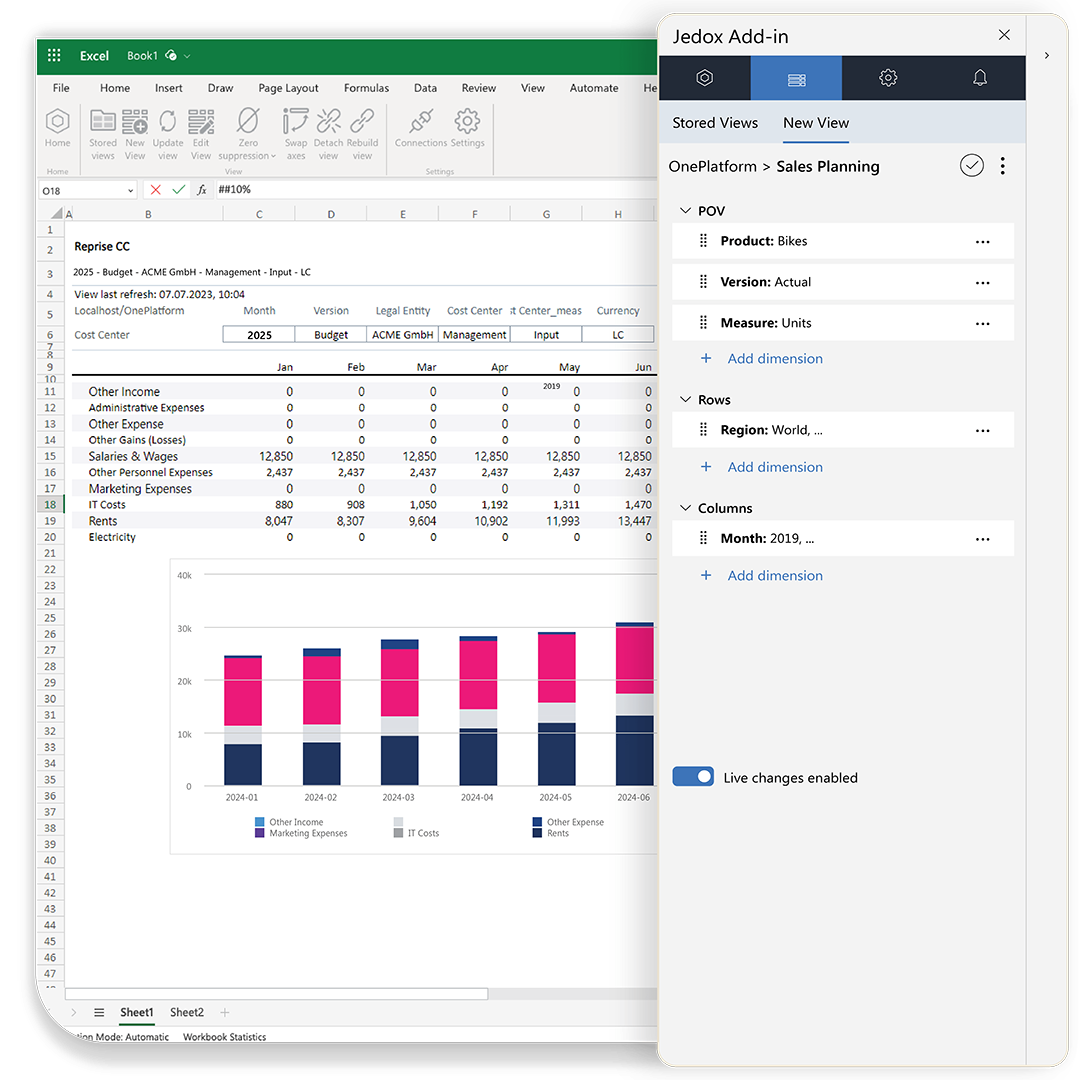
Jedox puts usability first—so users can work the way they’re used to, with the flexibility modern planning demands. Our native Excel Add-in allows planners to enter data, run forecasts, and analyze variances without ever leaving their spreadsheets. In addition, Jedox offers Microsoft 365 Add-ins for Word and PowerPoint, enabling users to refresh presentations and narrative reports instantly with up-to-date data—without manual updates or copy-paste work.
For browser-based workflows, Jedox offers governed web spreadsheets with robust workflow controls. And on the go, the mobile app enables real-time inputs, approvals, and reviews. Whether at a desk or in a meeting, users stay connected and productive—without having to copy files, rebuild spreadsheets, or switch between disconnected tools.
Modeling: Design planning logic, without code
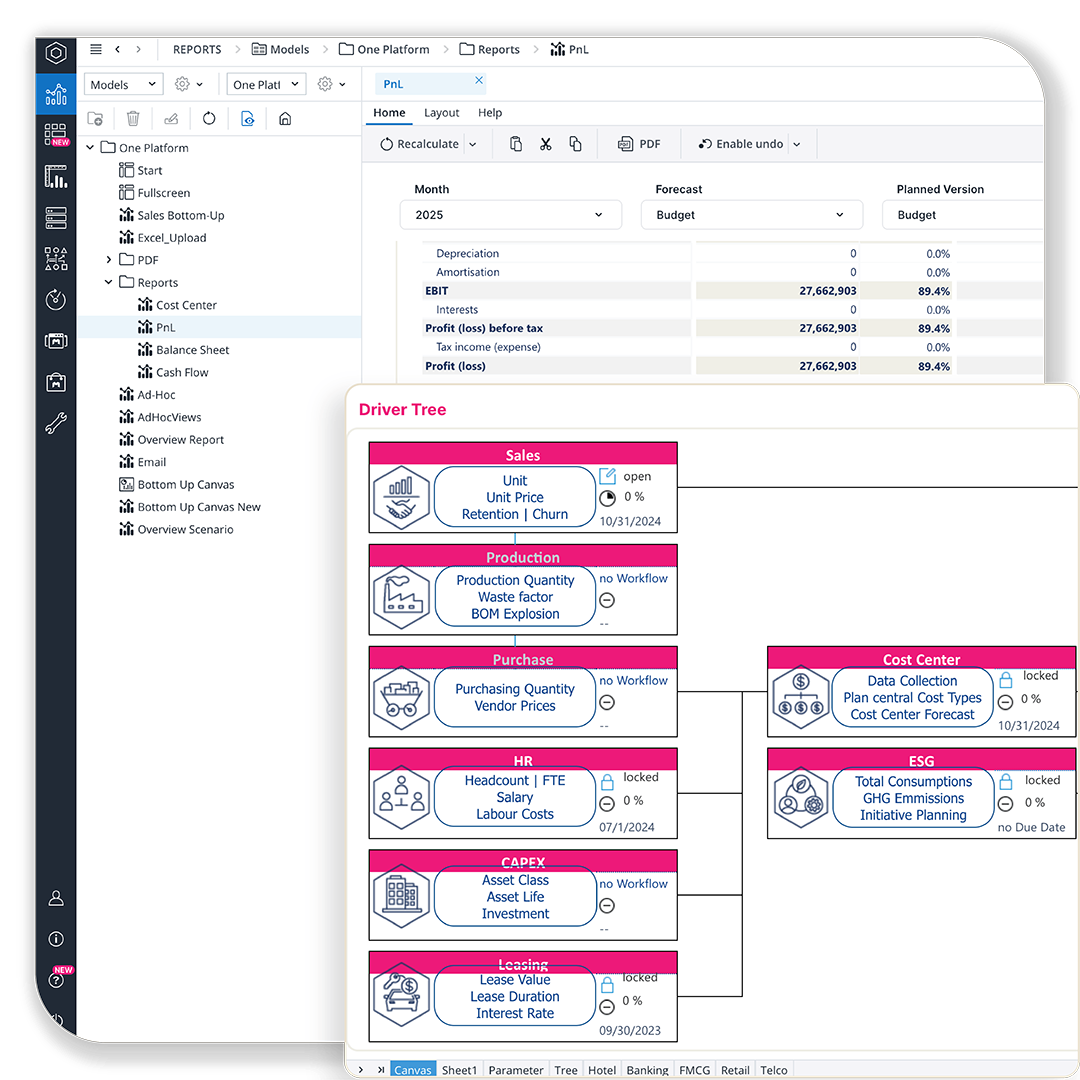
Model your business with speed and precision—no scripting required. Jedox lets Finance own the planning engine with visual tools for rule-building, driver logic, and scenario modeling. The in-memory calculation engine enables lightning-fast performance and real-time updates, even across multiple interconnected data models. Build top-down, bottom-up, or hybrid workflows with full transparency and version control. From budget allocations to cross-functional planning models, everything remains centralized, flexible, and auditable.
Data integration: Build your single source of truth
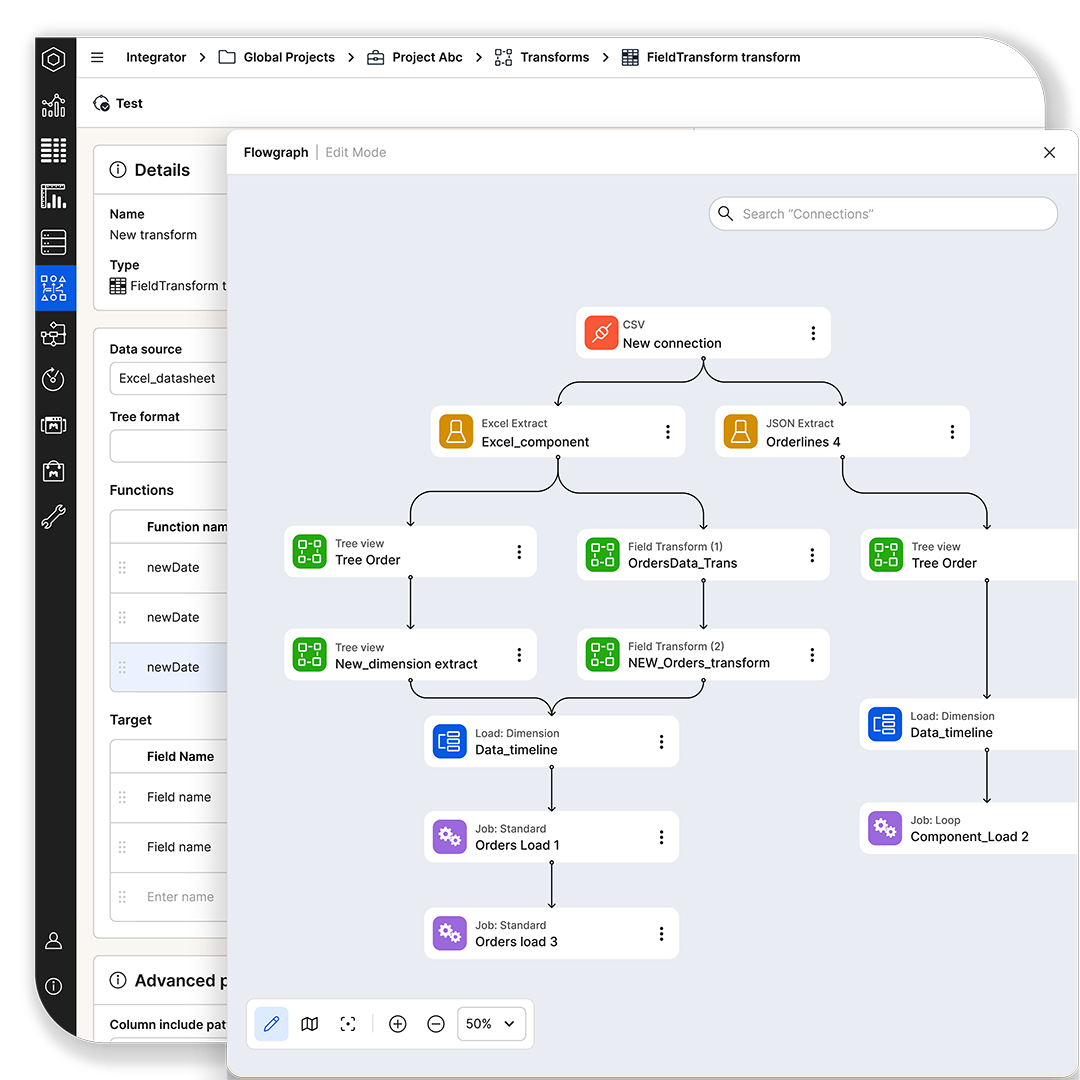
Jedox integrates your entire data ecosystem—from SAP, Microsoft, and Snowflake to cloud apps like Salesforce, databases, files, and REST APIs—enabling seamless data flow in and out of your planning environment. Built-in ETL and certified connectors bring actuals, forecasts, and master data together in one governed environment. Powerful transformation tools reshape data from any structure into the format your planning models require—harmonizing fields, aligning hierarchies, and standardizing disparate sources.
For advanced logic, Jedox supports scripted transformations using Groovy or JavaScript. Automate loads, schedule updates, monitor job health, and trace every step to keep data consistent, transparent, and auditable—providing a single source of truth across actuals, plans, forecasts, and operational drivers.
Governance and compliance: Plan with confidence
Jedox is built for trust. From fine-grained access controls to audit-ready versioning, the platform ensures planning is not only fast—but secure, validated, and compliant. Role-based permissions define access. Structured workflows ensure accuracy. And full traceability keeps you audit-ready—whether you’re working under regulatory pressure or internal policy.

JedoxAI: Intelligence that drives better decisions
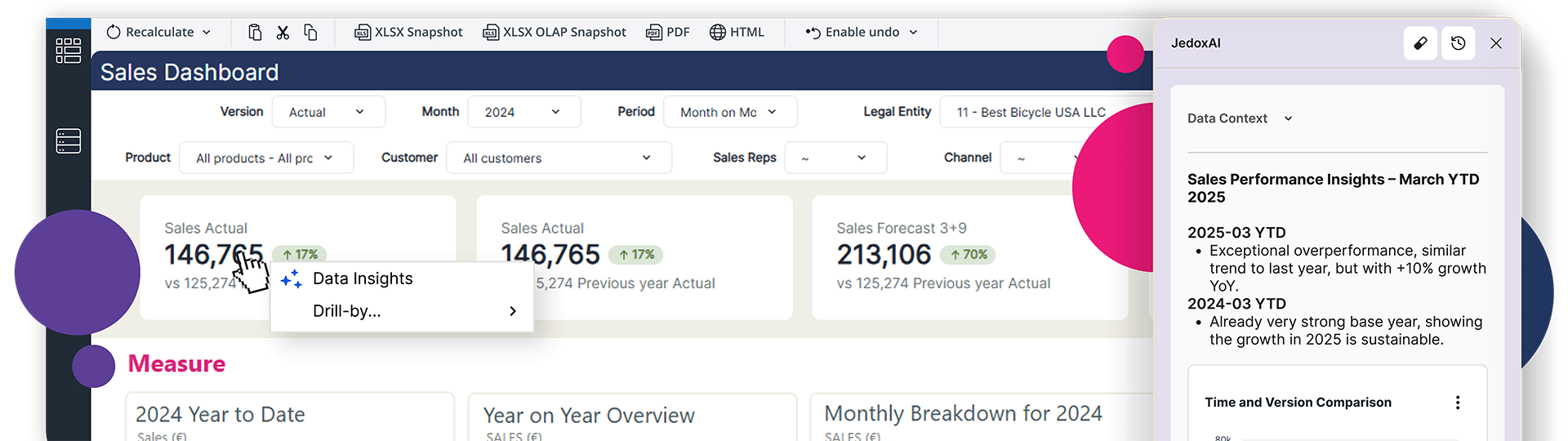
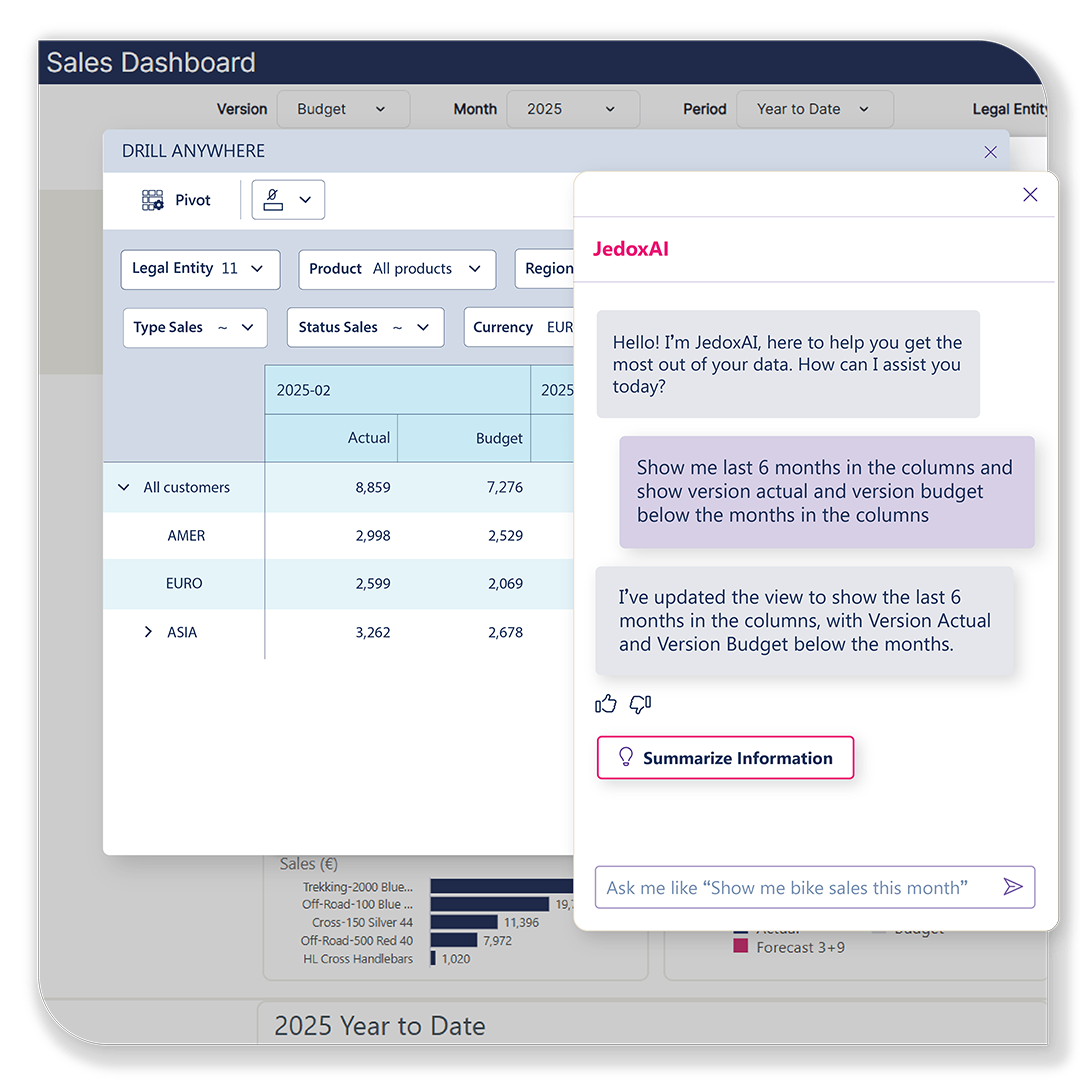
JedoxAI turns planning data into foresight. Embedded across the platform, it supports forecasting and process automation—helping Finance teams act faster and plan with more confidence. From predicting revenue trends to optimizing driver assumptions, JedoxAI augments human expertise with machine intelligence. Always explainable, auditable, and aligned with your business logic, it ensures smarter decisions without sacrificing control.
Jedox Marketplace: Accelerate enterprise planning at scale
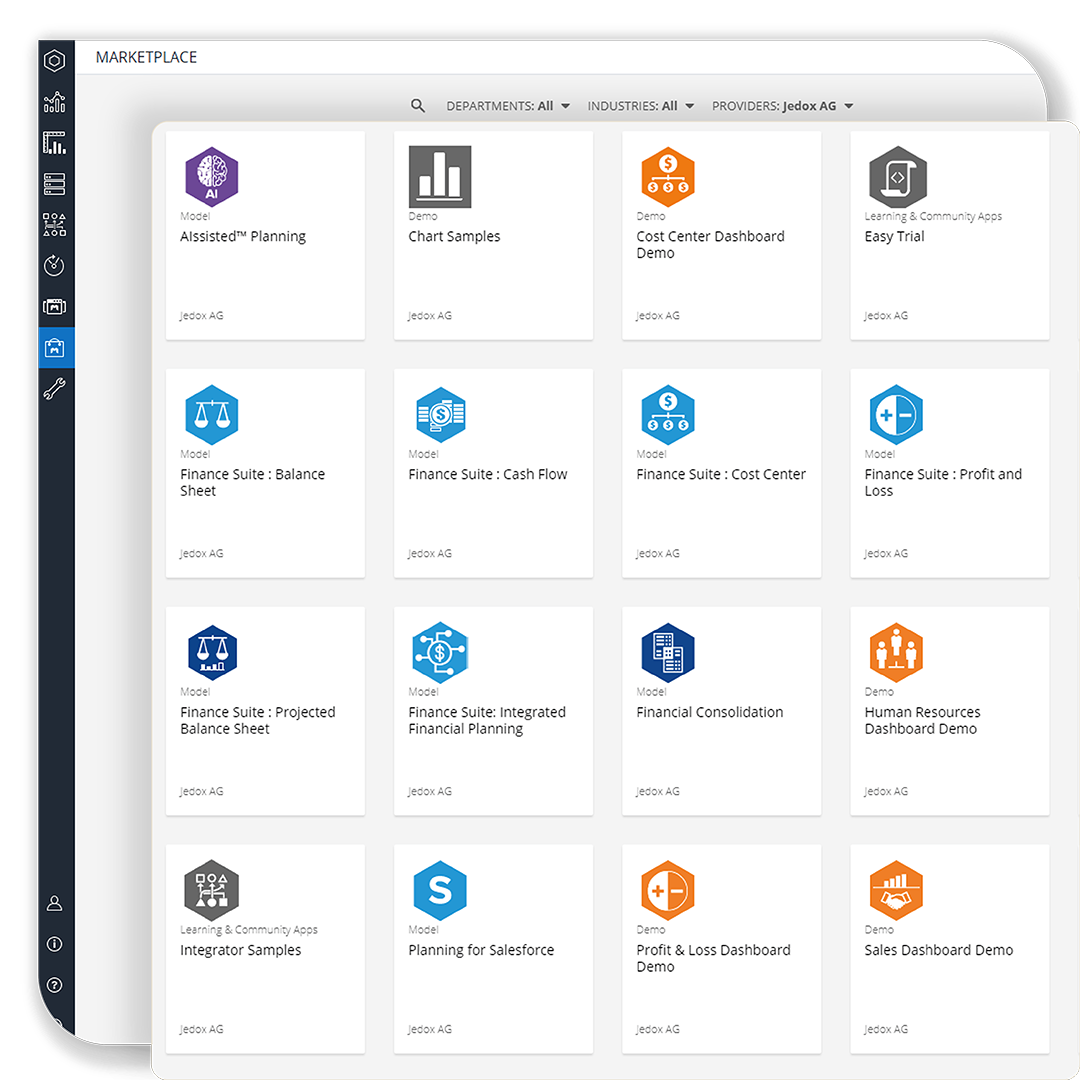
The Jedox Marketplace is a strategic accelerator for enterprise-wide planning transformation. It gives organizations instant access to expertly designed planning models, industry frameworks, and certified connectors that significantly reduce implementation effort and time-to-value.
From workforce planning and sales forecasting to CapEx, S&OP, and vertical-specific blueprints, Marketplace solutions allow teams to launch high-impact use cases in days, not months. Every asset is built on best-practice logic, fully customizable, and seamlessly integrated with the Jedox Platform—empowering Finance to scale faster, standardize processes, and drive consistent planning excellence across the entire business.